Making Documents Editable
Note
Caret browsing support is new in version 4.8. The HtmlText widget was made editable in version 4.15. Make sure you are using the latest version of TkinterWeb.
Overview
TkinterWeb can be used to create a rich text or HTML editor.
The HtmlText widget provides a simple HTML editor that can be extended to adapt to the needs of your application.
TkinterWeb also provides a useful API for developers to create their own HTML-based what-you-see-is-what-you-get editor.
These features are new. Please reach out to report a bug, suggest an improvement, or seek support.
Setup
To enable caret browsing mode, add yourhtmlframe.configure(caret_browsing_enabled=True) to your script or add the parameter caret_browsing_enabled=True when creating your HtmlFrame or HtmlLabel widget.
When enabled, a caret will appear once the user clicks on text in the document. Use the methods described below to handle keypresses, or instead use the HtmlText widget which handles most cases on its own.
How-to
Simply create your HtmlText and start editing!
from tkinterweb import HtmlText
yourhtmlframe = HtmlText(root, messages_enabled=True)
You can also load html, files, and websites. For instance, to create an editable page with a heading, an orange block, and a list, you could use the following:
yourhtmlframe = HtmlText(root, messages_enabled=True)
yourhtmlframe.load_html("""<h2>Hello, world!</h2>
<div style='background: orange; border-radius: 10px; padding: 10px'>
    <div>Tkinter is so cool.</div>
</div>
<ul>
    <li>TkinterWeb is also cool</li>
    <li>Python is also cool</li>
</ul>""")
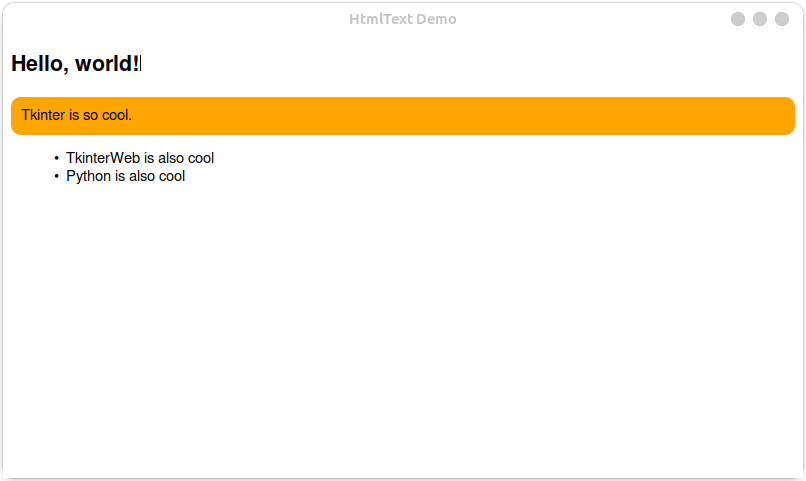
It’s that easy!
You can insert and edit hyperlinks, images, and much more. Click on a hyperlink while pressing the Ctrl key to navigate to it. Like the HtmlFrame widget, the HtmlText widget is also scrollable out of the box!
You can also use HtmlText.insert() and HtmlText.delete() to easily modify the document.
Customization
Everything described below applies to all HTML widgets with caret browsing enabled.
Use HtmlFrame.get_caret_position() to get the caret’s position. The element returned will always be a text node.
Tip
You can use the methods outlined in the HTMLElement documentation to get the element’s parent if needed. From here you can insert new elements, change the text and much more!
Use HtmlFrame.shift_caret_left() or HtmlFrame.shift_caret_right() to shift the caret left or right.
The following is a simple example showing how to handle keypresses to insert letters and numbers:
def on_keypress(event):
    # Get the caret's position
    caret_position = yourhtmlframe.get_caret_position()
    if caret_position and event.char:
        element, text, index = caret_position

        # Add the key's character to the element's text
        newtext = text[:index] + event.char + text[index:]

        # Set the element's text
        element.textContent = newtext

        # Shift the caret right
        yourhtmlframe.shift_caret_right()

yourhtmlframe.bind("<Key>", on_keypress)
This works on all HTML widgets.
Warning
If using the HtmlText widget, binding to <Key> will remove all default key bindings. Either bind to individual keys as needed or use yourhtmlframe.bind("<Key>", on_keypress, add="+"), but keep in mind then both bindings will fire.
Note
Most HTML elements collapse spaces. To insert a space into the document’s text, it is usually best to use a non-breaking space ("\xa0" or " ").
Use HtmlFrame.set_caret_position() to set the caret’s position if you know the element and index you want to place the caret at.
Some extra logic will be needed to handle other types of keypresses. See the HtmlText source code for inspiration.
Tip
When handling backspaces at the start of a node or deletions at the end of a node, it is sometimes useful to find the previous or following text nodes, respectively.
You can get the preceeding or following text nodes by using HtmlFrame.shift_caret_left() or HtmlFrame.shift_caret_right() followed by HtmlFrame.get_caret_position().
Use HtmlFrame.get_selection_position() to get the position of any selected text and HtmlFrame.clear_selection() to clear the selection.
You may need to set the caret’s position after modifying the document.
Tip
HtmlFrame.set_caret_position() will raise an error if the element provided has been removed or is empty.
If you need to remove or empty the elements returned by HtmlFrame.get_selection_position() or HtmlFrame.get_caret_position(), you can also get the selection or caret’s position relative to the page text content using HtmlFrame.get_selection_position(return_elements=False) and HtmlFrame.get_caret_position(return_element=False), respectively.
You can then set the selection or caret’s position as usual, providing only indexes (i.e. yourhtmlframe.set_selection_position(start_index=5, end_index=10).
The following code can be used as a starting point on handling backspaces when text is selected:
def on_backspace(event):
    # Get the selection's position and deselect all selected text
    selection = yourhtmlframe.get_selection_position()

    if selection:
        start, end, middle = selection
        start_element, start_element_text, start_element_index = start
        end_element, end_element_text, end_element_index = end

        # Deselect all selected text
        d.clear_selection()

        # Cut out the selection
        start_element.textContent = start_element_text[:start_element_index] + start_element_text[end_element_index:]

        if start_element != end_element:
            # Delete the end element
            end_element.remove()

            # Remove each element that is fully selected, and its parent if it is now empty
            for element in middle:
                parent = element.parentElement
                element.remove()
                if len(parent.children) == 0:
                    parent.remove()

        # Set the caret's position
        yourhtmlframe.set_caret_position(start_element, start_element_index)

yourhtmlframe.bind("<BackSpace>", on_backspace)
You can use HtmlFrame.set_selection_position() to set the selection if needed.
See the HtmlFrame documentation for a complete list of supported methods.
Please report bugs or request new features on the issues page.